



.webp)


%20(1).webp)




.png)



Most email signature generators teach you to add large images, multiple URLs, banners, and tracking pixels. Inside corporate email, these look great. Inside cold outreach, every one of those elements is a strike against you.
The signature you spent an hour designing becomes the reason your campaign lands in promotions instead of the primary inbox.
This generator was built to do the opposite: produce a clean, lightweight signature that helps your emails land where they're supposed to.
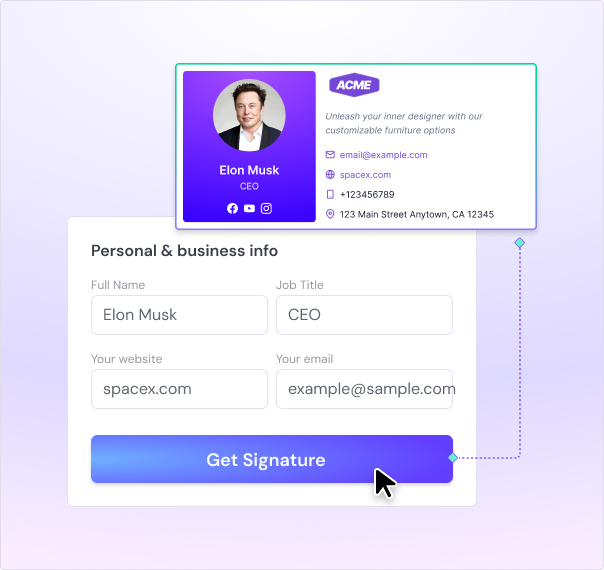
How to Generate a Cold-Email-Safe Signature in 4 Simple Steps
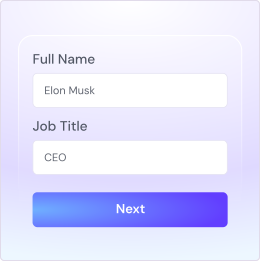
Type in your full name, job title, company, email address, and phone number. These are the five elements that should always be in a professional signature. Skip optional fields like address and pronouns if you're optimizing for cold outreach (a smaller signature = better deliverability).
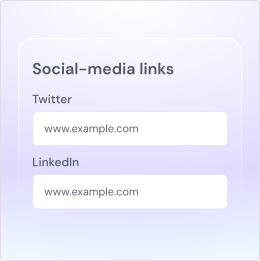
Include your LinkedIn URL because it's the one social link that matters for B2B. Skip Facebook, Instagram, and X unless your role is consumer-facing. If you want a calendar booking link, add it here (Calendly, SavvyCal, Cal.com). Keep the total URL count under three for cold email.
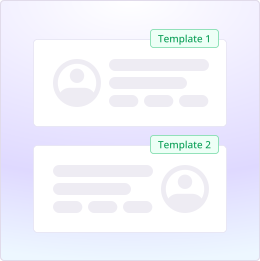
Pick a template that matches your role. For cold outreach, a text-first template with one small logo performs best. For warm conversations and inbound replies, you can add a photo and brand colors without significant deliverability cost.
Use the copy button to grab either the rich-text version (for Gmail's signature editor) or the raw HTML (for Outlook, Apple Mail, or pasting into Smartlead campaigns). Step-by-step instructions for each email client are in the FAQ below.

An email signature is a short block of text, contact details, and optional images that's automatically appended to the end of every email you send.
A cold-email-safe signature is the version of that block built for outbound campaigns: under 5KB of HTML, one image at most, three URLs maximum, and no tracking pixels.
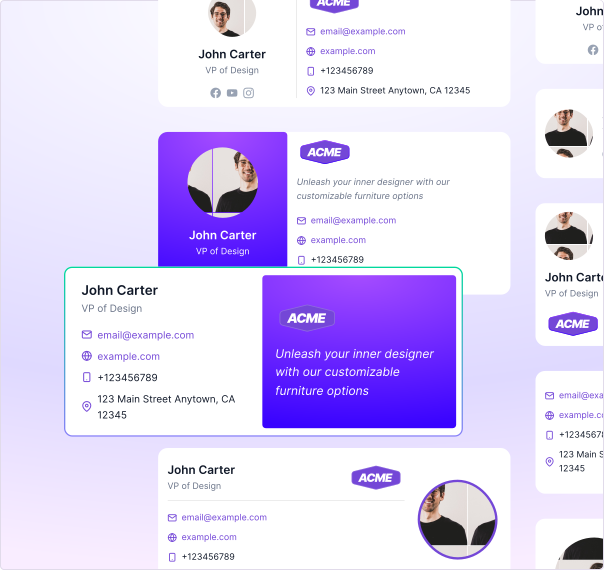

You're running multi-touch campaigns to prospects who don't know your brand. Every signature element is a chance for inbox providers to flag your email as bulk. A tight, text-first signature signals that the email came from a person, not a marketing automation tool.

You have 5-50 reps sending cold emails from multiple inboxes. Inconsistent signatures across the team hurt your collective sender reputation and create brand inconsistency. A signature generator that everyone uses keeps the team aligned.

Large websites or applications may use numerous domain names and subdomains for various functions. Regularly verifying CNAME records ensures that all these domains point to the correct destinations and streamline DNS management.

You manage cold outreach across multiple client accounts. Each client needs a brand-consistent signature that doesn't tank deliverability. Generate per-client signatures in seconds without designing each one from scratch.
Enhance your cold emailing with smart tools for better deliverability, personalization, and engagement.
Explore All Tools
.svg)

Get AI-native operating system for your enterprise sales team
Book a DemoFounder, StackOptimise
Smartlead's combination of automation, unlimited inboxes, and easy campaign management has completely transformed how we run cold email campaigns.
.jpg)
Founder, Cold Email Hackers

We have about 15 companies and we use Smartlead for all of them.

Founder, DutchSave Media

One of the things I love about using Smartlead is the deliverability feature. If they landed in the bounce or spam folders, we could resolve this quickly.

Co-Founder, Growth Today

I want to continue to use Smartlead to make operations more seamless - the plan is to bring more clients here and build more SOPs.

Founder, FueltoFly

Smartlead listens to the agencies and customers and builds according to what people want, that has really made things easier for us.

Founder, OutboundSync

We build an infrastructure product, and OutboundSync communicates with Smartlead itself. I love the webhook and API. They're really well done and keep getting better.

Founder, Axoleads

With SmartDelivery, you can put all of that in the hands of the tool. It ensures your emails land in inboxes, and by running a simple test, you can see if you're hitting the mark.

Founder, Claygen
Deliverability is the cornerstone of cold email outreach. You could have the best email copy in the world, but if no one is seeing it, it's useless. I really love the feature where you can actually give client accesses to your clients.

Co-Founder, Cymate

I do not want to switch to another software. Pick a solution you trust, stick with it, and keep refining your copy.

CMO, Avalanche Capital

Managing large volumes of emails through multiple inboxes used to be a logistical nightmare. With Smartlead, the process is seamless. We book thousands of discovery calls through cold emails. These campaigns are generating leads at a scale we never thought possible.

Founder, Growth Engine X

We came for the unlimited inboxes, and we stayed for the API. 1.5M cold emails/month, 7,767+ inboxes managed.

Head of Community & Ecosystem, TxtCart

You cannot replace having 10,000 touches with potential clients. When you have that much distribution and reach, you really start to see incredible results. The simplicity of Smartlead made all the difference. It doesn't require you to be a technical wizard.

Founder, Hyperke

Smartlead has been a game-changer for us. It increased our appointment volume, improved ease of use, and offered valuable features. 80% increase in appointments/month, peak of 276 appointments in a single month.

Founder, Kinetyca

Smartlead has been our cold email backbone from day one. The platform evolves constantly, keeping pace with how deliverability and personalization need to work today. 21% overall reply rate, $175K in 4 months for multiple B2B clients.

Founder, Reachflow

Smartlead is centered around deliverability and constantly evolving. Their API is not like any other platform. Smartlead covers all our needs. The focus on core features like deliverability and API integration is unmatched.

CEO, Halfwarm

Our approach to crafting conversational emails led to reply rates that many of my peers thought were unattainable.

Co-Founder, letstrike

We've grown on zero capital, zero marketing, purely cold emailing - and that's the story we love to tell. The best approach is no approach if you can't handle domain meltdown. The second best is something like Smartlead that's built from the ground up for deliverability at scale.

Founder, Fenixtal

Smartlead's white-labeling and automation let us punch above our weight. The 12M euros sales potential? That's what happens when you combine human creativity with Smartlead's precision.

Co-Founder, Digital Creativs

Nine out of 10. Ninety percent of our clients are on Smartlead unless they come in with an existing setup. That's the default.

Co-Founder, BuildingReach

At the end of the day, you have to take a bet on one tool or another. It was a no-brainer taking that bet on Smartlead. We had to even turn down the volume of our marketing campaigns - Smartlead was capable of driving more volume than our sales team was able to fulfill.

Founder & MD, Prospectiv

Since starting the business in January of this year, we've already generated $200K in sales exclusively from cold email. Smartlead has been central to our operations and has exceeded our expectations.

Founder, Growthlynk

There's so much stuff built on top of it. I would be dead if I had to rebuild it with another tool. I can manage hundreds of senders easily. I can send hundreds of thousands of emails.

Founder, Corebits

The platform's HubSpot integration, real-time Slack updates, and advanced campaign customization have been game changers for our business and our clients'.

Founder, Apex Ascension

From day one, we've never used anything else.
Yes, completely free. No signup, no email required, no paywall. Generate as many signatures as you want and paste the HTML into any email client.
Every signature adds weight to your email. Heavy signatures push the total email size over thresholds that Gmail, Outlook, and other inbox providers use to triage incoming mail. Multiple URLs trigger reputation checks. Tracking pixels get flagged as suspicious behavior. The cumulative effect of cold email can drop primary-inbox placement by 15-30%.
Open Gmail, click the gear icon (top right), select "See all settings", scroll to the Signature section, paste your signature HTML, and click "Save Changes" at the bottom of the page.
Open Apple Mail, click Mail in the menu bar, select Settings, choose the Signatures tab, click "+" to add a new signature, paste your HTML, and assign it to the email account you want to use it with.
Yes. Every template is designed to look professional across both desktop and mobile clients. The templates default to web-safe fonts (Arial, Georgia, Verdana) that render consistently on Windows, Mac, iOS, and Android.
Yes. For a student email signature, use the minimal text template and include your full name, graduation year, university and major, school email, and (optionally) a LinkedIn URL. Avoid decorative images, which take up screen space on the small inboxes that admissions officers and professors usually read on.
For cold outreach, generally no. Photos add image weight, add a separate render request that often fails when recipients have images disabled, and increase deliverability risk. For warm conversations and replies, a small headshot under 30KB is fine and can build rapport.
No. An email signature is a block of contact information that appears at the end of your emails (a branding element). An electronic signature is a legally binding mark used to sign contracts and agreements online (think DocuSign). This tool generates email signatures only, not electronic signatures.
A cold-email-safe signature stays under 5KB of HTML, uses zero or one images, includes no more than three URLs, and contains no tracking pixels. These constraints keep your signature from triggering spam filters that scrutinize cold senders more aggressively than corporate ones.
The five essentials are full name, job title, company name, professional email, and a direct phone number. The two professional add-ons are a LinkedIn URL and an optional calendar booking link. Anything beyond these seven elements is usually noise that hurts more than it helps.
On Outlook for Windows or Mac: File → Options → Mail → Signatures → New → paste your signature HTML → Save. On Outlook on the web: Settings → View all Outlook settings → Mail → Compose and Reply → paste signature → Save.
Yes. The tool outputs clean HTML that you can paste into any email client that supports HTML signatures, including Gmail, Outlook, Apple Mail, Yahoo Mail, and the Smartlead campaign editor.
Yes. The tool is built for business email signatures, with a specific focus on signatures that work in B2B cold outreach contexts. For internal corporate use, you can also use the tool, with the caveat that you can safely add more elements (larger images, more URLs) when deliverability isn't a concern.
For cold email, strongly no. Many corporate email security systems flag tracking pixels as suspicious for first-touch cold emails. If you need open tracking, use platform-level tracking inside Smartlead or your sending tool, which is more discreet and doesn't sit in your signature.


.svg)




.svg)